

Listen to this article
Checking audio support
A few years back, I was working on a frontend screen that looked completely normal during development. Login worked. The dashboard opened. The data came from the API. Everything looked fine on my machine, which is usually the most dangerous sentence in software development.
Then someone from the team tested it with a different user account. Suddenly the dashboard showed the wrong buttons. A normal user could see an admin action. The backend still protected the action, so nothing dangerous happened, but the UI was confusing. The bug was not in React. It was not in the API. It was not some huge architecture problem.
It was one small condition.
That day was a nice reminder that JavaScript conditions are not just beginner syntax. They are tiny decision points that decide what a user sees, what message appears, which route opens, which button stays hidden, and whether your app feels reliable or confusing.
So let us learn conditions like we are debugging a real application together. No textbook mood. No robotic definitions. Just simple JavaScript, practical frontend examples, and the kind of thinking that helps when you later move into React, Next.js, dashboards, forms, authentication, and API-heavy screens.
What You Will Learn
What conditions are in JavaScript and why every application needs them
How if, else, and else if work in simple words
Why the order of conditions matters
How nested conditions become confusing in real projects
What truthy and falsy values mean inside conditions
How logical operators help with authentication, validation, and permissions
When switch statements and ternary operators are useful
How conditions affect real frontend rendering, loaders, API states, and role-based UI
First, What Is a Condition?
A condition is simply your code asking a question before taking action.
Is the user logged in? Is the cart empty? Is the API still loading? Is this person an admin? Is the form valid? Should the delete button be visible?
That is the whole idea. JavaScript checks a question. If the answer passes, it runs one block of code. If the answer does not pass, it can skip that block or run a different one.
const isLoggedIn = true;

if (isLoggedIn) {
  console.log('Show dashboard');
}
In this small example, JavaScript checks isLoggedIn. Because the value is true, the dashboard message runs.
Important note: Conditions are not just about syntax. They are about thinking clearly. Good conditions make application behavior easy to understand.
Think of Conditions Like Daily Decisions
You already understand conditions in real life. If it rains, carry an umbrella. If your phone battery is low, charge it. If traffic is heavy, leave early. If the user is logged in, show the dashboard.
JavaScript is doing the same kind of decision-making, only with values instead of weather, traffic, and battery percentage.
This is why conditions are everywhere in software. Without them, an app would behave the same way for every user, every role, every API response, and every situation. That would be like a restaurant giving the same dish to every customer without asking what they ordered. Thoda problem ho jayega.
The if Statement: The First Decision
The if statement is the first condition most beginners learn. It means: run this code only if this thing is true.
const cartTotal = 1200;

if (cartTotal > 1000) {
  console.log('You are eligible for free delivery');
}
Here the question is: is cartTotal greater than 1000? The answer is yes, so JavaScript shows the free delivery message.
In a frontend project, this same idea may decide whether a banner appears on the checkout page.
const cartTotal = 1200;
const showFreeDeliveryBanner = cartTotal > 1000;

if (showFreeDeliveryBanner) {
  console.log('Show free delivery banner');
}
Notice the variable name: showFreeDeliveryBanner. This is small, but it matters. In real code reviews, I often prefer readable condition names over clever one-line logic. Your future self should not need detective skills to understand your own code.
The else Statement: When the First Plan Fails
Most real decisions have a fallback. If the user is logged in, show the dashboard. Otherwise, show the login screen.
const isLoggedIn = false;

if (isLoggedIn) {
  console.log('Show dashboard');
} else {
  console.log('Show login screen');
}
The else block is that otherwise path. It runs when the if condition does not pass.
This is where conditions start feeling like real application behavior. A page is not just rendering one thing. It is choosing between two possible user experiences.
The else if Statement: When Life Has More Than Two Options
Of course, real apps are rarely only yes or no. An order can be pending, shipped, delivered, cancelled, or unknown. A user can be admin, editor, viewer, or guest. An API call can be loading, successful, empty, or failed.
That is where else if helps.
const orderStatus = 'shipped';

if (orderStatus === 'pending') {
  console.log('Your order is being prepared');
} else if (orderStatus === 'shipped') {
  console.log('Your order is on the way');
} else if (orderStatus === 'delivered') {
  console.log('Your order has been delivered');
} else {
  console.log('Order status is not available');
}
JavaScript checks from top to bottom. The first matching branch runs, then the remaining branches are skipped.
This top-to-bottom behavior is important. I have seen bugs where a broad condition was written before a specific condition, so the specific branch never got a chance to run.
const score = 92;

if (score >= 50) {
  console.log('Passed');
} else if (score >= 90) {
  console.log('Excellent');
}
A score of 92 is greater than 50, so JavaScript prints Passed and stops there. The Excellent branch never runs. The fix is to put the more specific condition first.
const score = 92;

if (score >= 90) {
  console.log('Excellent');
} else if (score >= 50) {
  console.log('Passed');
} else {
  console.log('Try again');
}
Developer tip: When multiple conditions are related, think about the order before writing code. The first matching branch wins.
Condition Flow Thinking
Before writing a condition, pause for a moment and imagine the screen as a small story.
A user opens the page. Maybe the data is still loading. Maybe the API fails. Maybe the response succeeds but the list is empty. Maybe the user is not allowed to see the page. Maybe everything works and the content should render.
A lot of frontend bugs happen because we write the happy path and forget the uncomfortable states. Real applications are full of uncomfortable states.
A simple mental checklist helps:
What should happen while loading?
What should happen when there is an error?
What should happen when data is empty?
What should happen when the user is not logged in?
What should happen when the user does not have permission?
What should happen when everything is okay?
This is how senior developers usually think about UI logic. Not because they know fancy syntax, but because they have been hurt by enough edge cases.
Nested Conditions: The Staircase Problem
Now let us return to that dashboard story. Suppose we want to show different pages based on login and role.
const isLoggedIn = true;
const userRole = 'admin';

if (isLoggedIn) {
  if (userRole === 'admin') {
    console.log('Show admin dashboard');
  } else {
    console.log('Show user dashboard');
  }
} else {
  console.log('Show login screen');
}
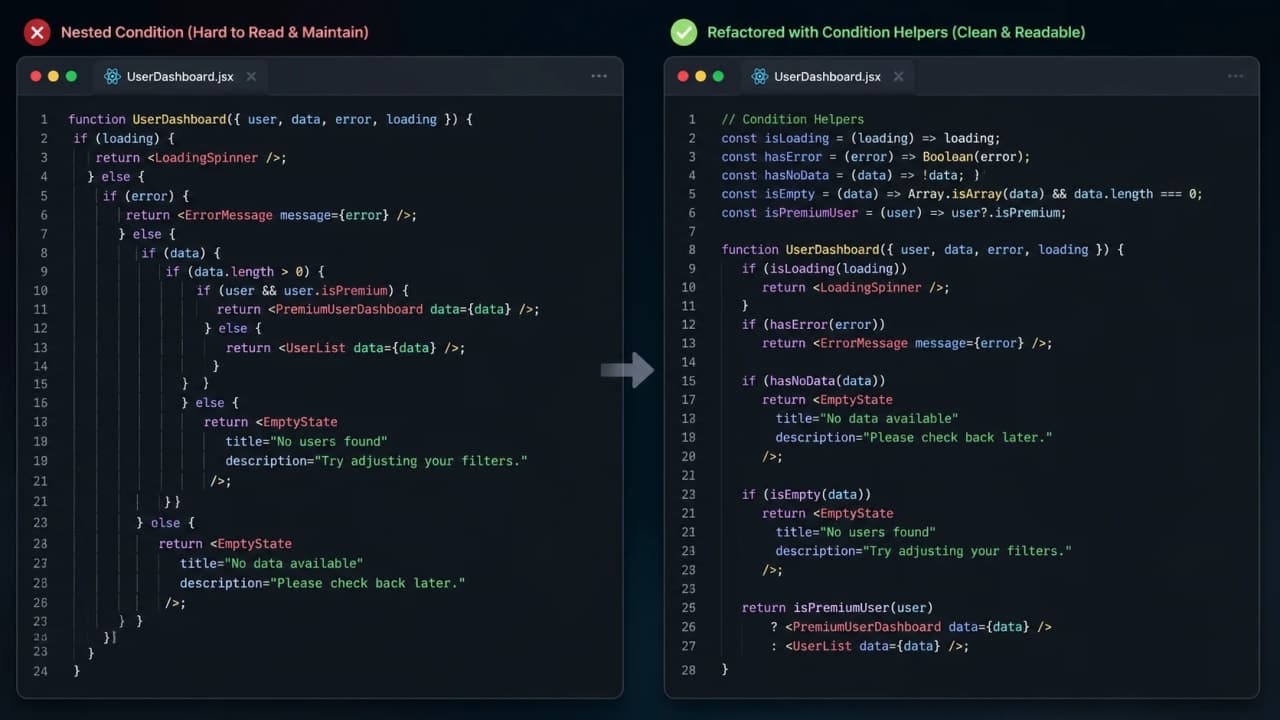
This code works. But visually it already starts moving to the right. If we add email verification, subscription status, feature flags, and account blocking, it becomes a staircase.
That is the problem with deeply nested conditions. They are not always wrong, but they become hard to scan. And when code is hard to scan, bugs hide more easily.
A cleaner way is to exit early when a condition fails.
function getDashboardRoute(user) {
  if (!user) {
    return '/login';
  }

  if (!user.emailVerified) {
    return '/verify-email';
  }

  if (user.role === 'admin') {
    return '/admin';
  }

  return '/dashboard';
}
This reads like a story. No user? Go to login. Email not verified? Go to verification. Admin? Go to admin. Otherwise, normal dashboard.
Real-world observation: Nested conditions are fine for small cases. But when the code starts looking like a staircase, simplify it before it becomes a bug factory.
Truthy and Falsy: The Beginner Trap That Appears Everywhere
Truthy and falsy values are where many beginners start feeling that JavaScript is playing mind games.
How is it so far?
Vote with other readers
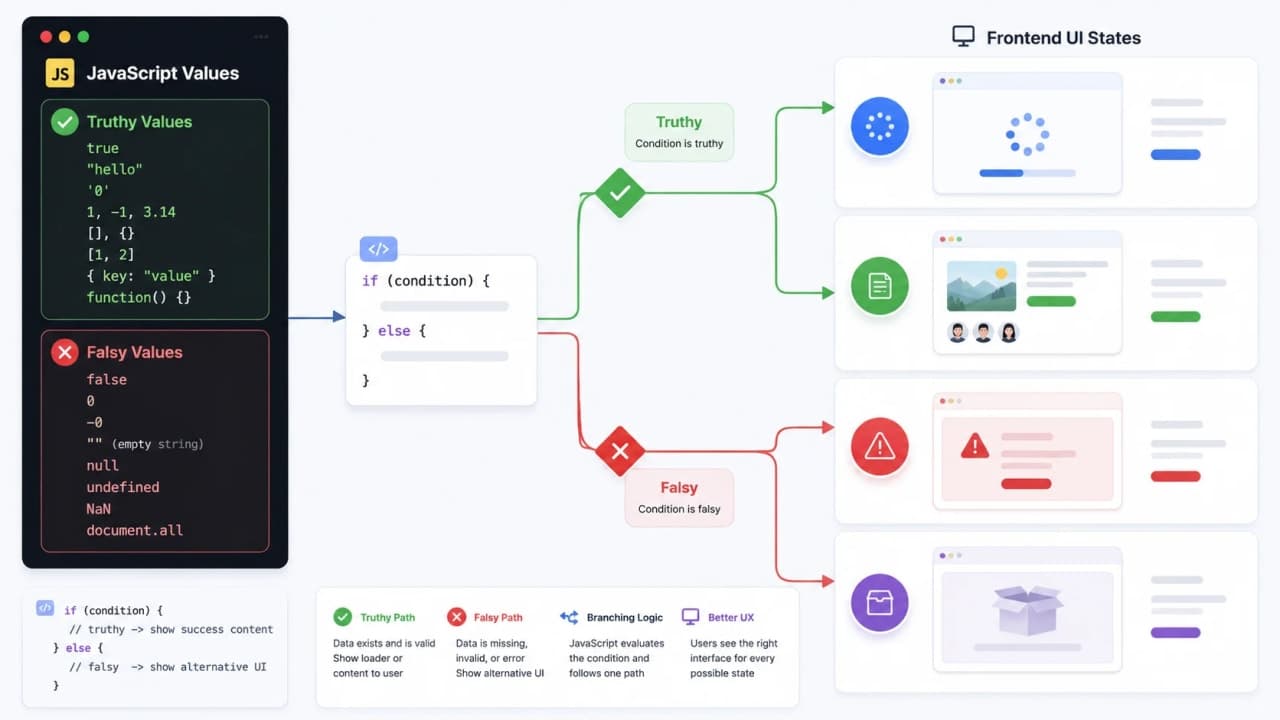
In JavaScript, a condition does not always need to be exactly true or false. JavaScript can treat some values as true-like and some values as false-like.
These are common falsy values:
false
0
empty string ""
null
undefined
NaN
const userName = '';

if (userName) {
  console.log('Show profile name');
} else {
  console.log('Ask user to enter a name');
}
Because userName is an empty string, JavaScript treats it as falsy and runs the else block.
This is useful for quick checks, but it can also be risky if you do not understand what JavaScript is checking. Here is a classic frontend confusion:
const cartItems = [];

if (cartItems) {
  console.log('Cart exists');
}
This runs. Why? Because an empty array is truthy. But a truthy empty array does not mean the cart has products. It only means the array exists.
If you want to check whether the cart has items, check the length.
const cartItems = [];

if (cartItems.length > 0) {
  console.log('Show cart items');
} else {
  console.log('Show empty cart message');
}
Important note: Truthy does not always mean useful. An empty array is truthy, but your UI may still need to show an empty state.
Logical Operators: Combining Small Decisions
Real application logic usually needs more than one question. Is the user logged in and subscribed? Is the user admin or editor? Is the page not loading? That is where logical operators help.
&& means both conditions should pass
const isLoggedIn = true;
const hasSubscription = true;

if (isLoggedIn && hasSubscription) {
  console.log('Show premium content');
}
Both conditions must be true. This is common for premium content, protected actions, and dashboard access.
|| means at least one condition should pass
const isAdmin = false;
const isEditor = true;

if (isAdmin || isEditor) {
  console.log('Show edit button');
}
This is useful when multiple roles can do the same thing.
! means not
const isLoading = false;

if (!isLoading) {
  console.log('Show page content');
}
Read !isLoading as not loading. Once you read it like English, it becomes less scary.
In bigger code, naming the combined condition can make everything cleaner.
const canEditArticle = isLoggedIn && (isAdmin || isEditor);

if (canEditArticle) {
  console.log('Show edit controls');
}
Short-Circuit Behavior: JavaScript Stops When It Already Knows
Short-circuiting means JavaScript does not always check every part of a condition. It stops as soon as it knows the final answer.
const user = null;

if (user && user.name) {
  console.log(user.name);
}
Here, user is null. Because the first part fails, JavaScript does not try to read user.name. That avoids an error.
In modern JavaScript, optional chaining is even cleaner for this kind of situation.
const user = null;

console.log(user?.name);
Short-circuiting also appears a lot in React-style conditional rendering.
const hasError = true;

// React-style example
{hasError && <p>Something went wrong.</p>}
This means: if hasError is true, render the message. If not, render nothing. It looks unusual when you first see it, but it is just condition logic wearing a frontend outfit.
Switch Statements: Useful When One Value Has Many Known Cases
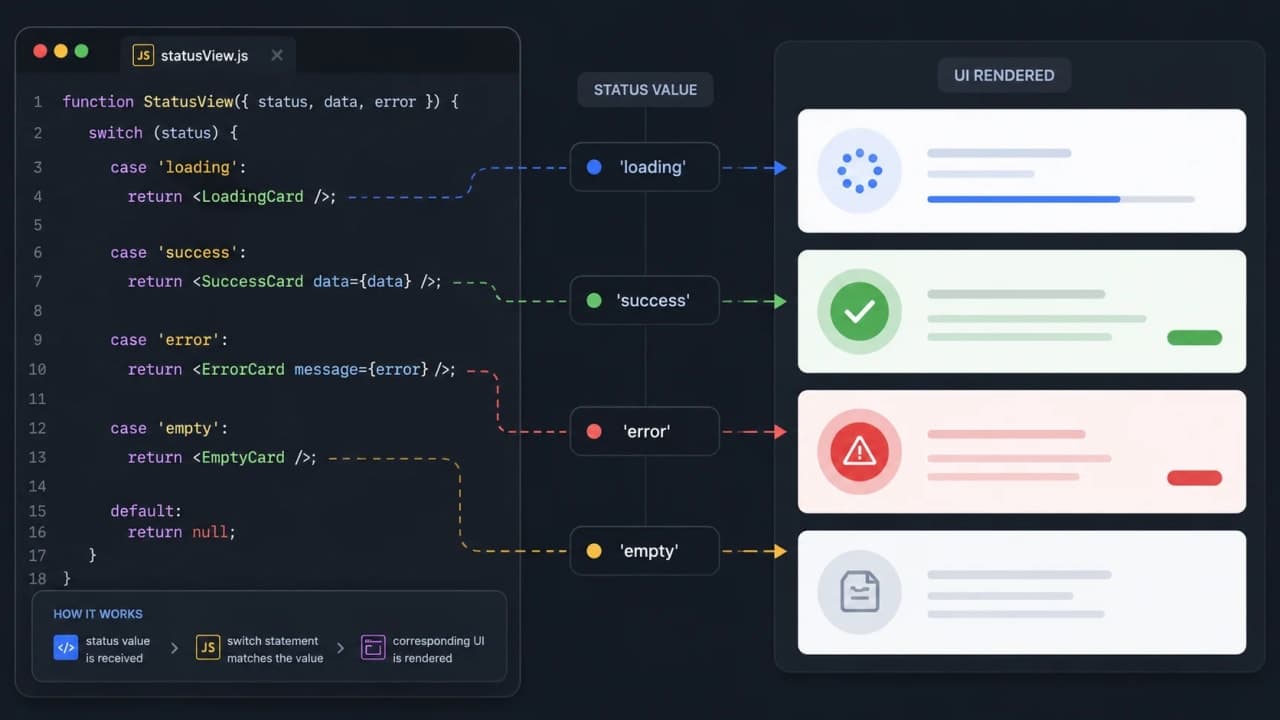
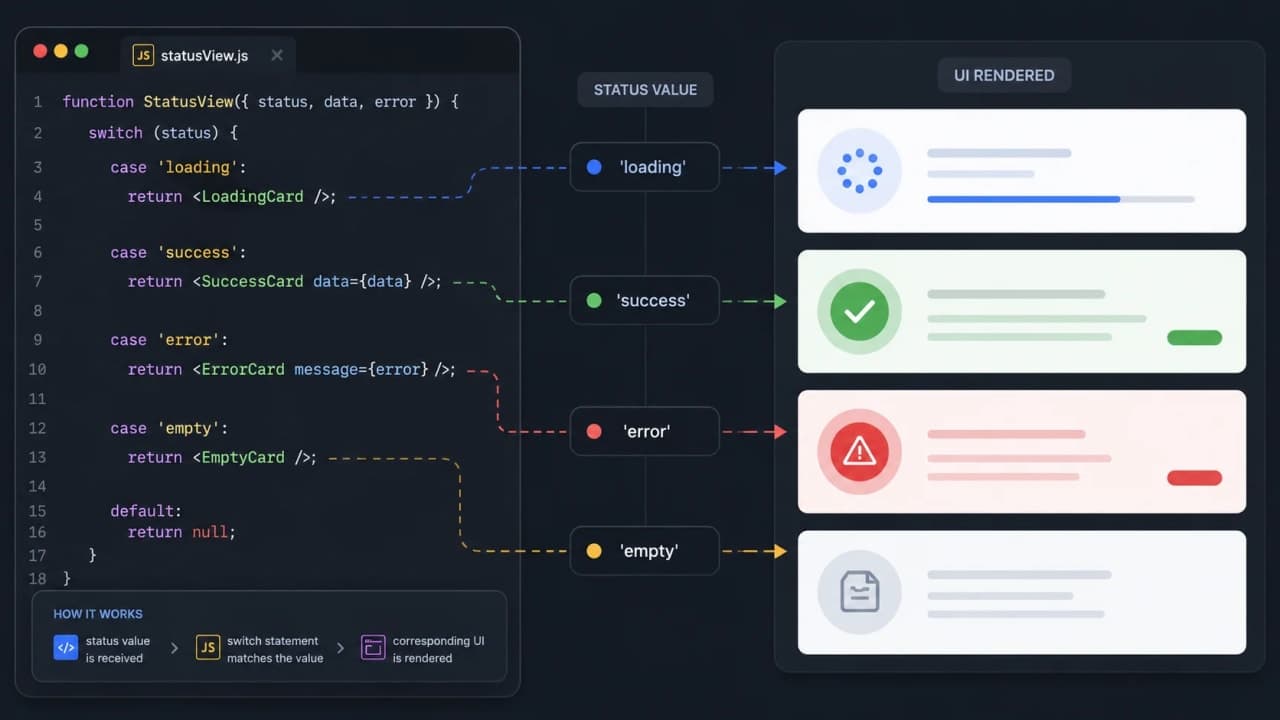
A switch statement is helpful when one value can match several clear options. Think order status, article status, payment status, notification type, or user role.
const status = 'published';

switch (status) {
  case 'draft':
    console.log('Show draft badge');
    break;

  case 'published':
    console.log('Show live badge');
    break;

  case 'archived':
    console.log('Show archived badge');
    break;

  default:
    console.log('Show unknown status');
}
This is easier to scan than a long else-if chain when you are checking the same value again and again.
But keep switch cases small. If every case has twenty lines of logic, the switch becomes a crowded room where nobody knows who is talking.
Ternary Operator: Good for Small Choices
The ternary operator is a short way to write a simple if/else expression.
const isLoggedIn = true;

const message = isLoggedIn ? 'Welcome back' : 'Please log in';

console.log(message);
Read it like this: if isLoggedIn is true, use Welcome back. Otherwise, use Please log in.
In frontend work, ternaries are useful for button labels and small UI decisions.
const isSaving = false;

const buttonText = isSaving ? 'Saving...' : 'Save changes';
But ternaries become painful when they are chained too much. If the logic has multiple branches, a helper function is usually kinder to everyone.
function getStatusLabel({ isLoading, hasError, data }) {
  if (isLoading) return 'Loading';
  if (hasError) return 'Error';
  if (data.length === 0) return 'Empty';

  return 'Loaded';
}
Developer tip: Use ternary for small choices. Use if/else or helper functions when the decision needs breathing room.
How Conditions Shape Real Frontend Screens
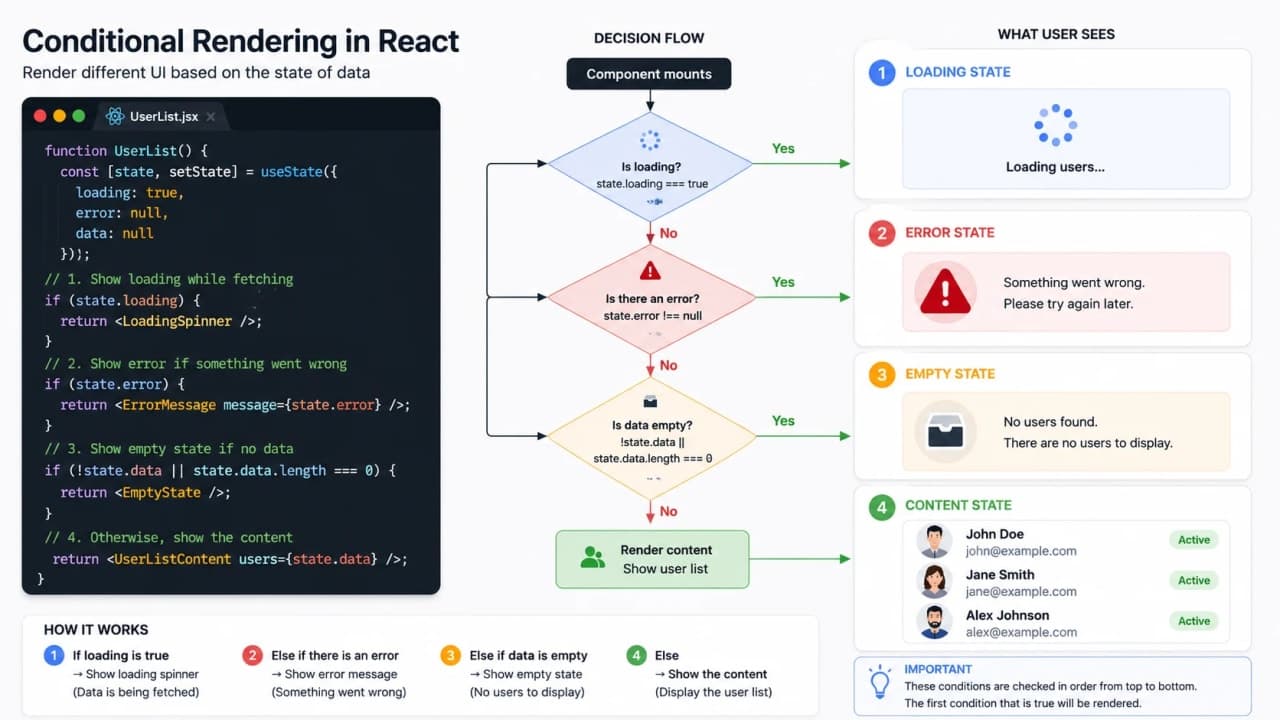
Let us connect all this to a real frontend screen. A product list page rarely has only one state. It has loading, error, empty, and success states.
function ProductList({ isLoading, error, products }) {
  if (isLoading) {
    return <p>Loading products...</p>;
  }

  if (error) {
    return <p>Could not load products.</p>;
  }

  if (products.length === 0) {
    return <p>No products found.</p>;
  }

  return (
    <ul>
      {products.map((product) => (
        <li key={product.id}>{product.name}</li>
      ))}
    </ul>
  );
}
This is a clean flow. Loading first. Error second. Empty state third. Real content last.
If you change the order carelessly, users may see an empty message while data is still loading. Or they may never see the actual error. That is why condition order is not just a syntax detail. It directly changes the user experience.
Conditions in API Handling
API code is another place where conditions become real very quickly. You are not just asking whether data exists. You are asking whether the request succeeded, whether the response is usable, and whether the UI should show content or fallback states.
async function loadProducts() {
  const response = await fetch('/api/products');

  if (!response.ok) {
    throw new Error('Failed to load products');
  }

  const products = await response.json();

  if (products.length === 0) {
    console.log('Show empty product message');
  } else {
    console.log('Render product grid');
  }
}
This is the kind of code that teaches you why conditions matter. Real applications are not only about success. They are about all the small paths around success.
Conditions in Authentication and Roles
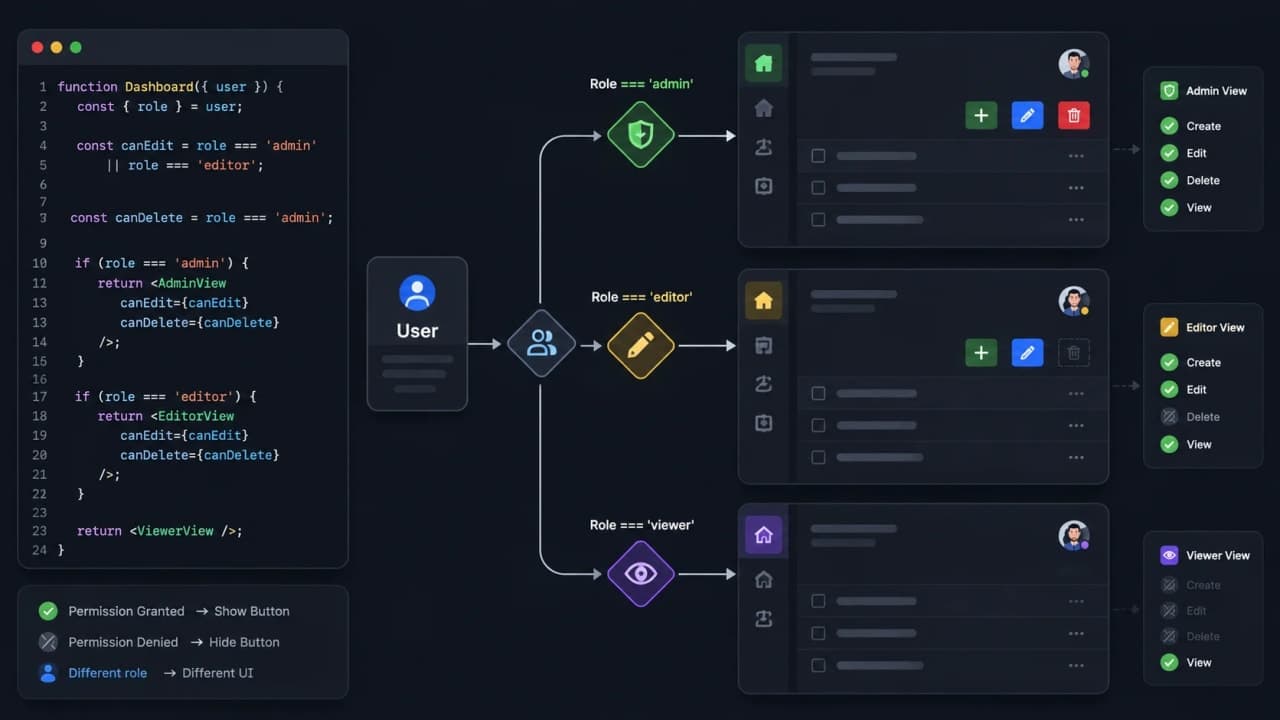
Let us go back to the dashboard bug from the beginning. Role-based UI depends heavily on conditions.
const user = {
  name: 'Siddhant',
  role: 'editor',
};

const canPublish = user.role === 'admin' || user.role === 'editor';
const canDelete = user.role === 'admin';

if (canPublish) {
  console.log('Show publish button');
}

if (canDelete) {
  console.log('Show delete button');
}
This makes the interface feel relevant. Editors can publish. Only admins can delete. Viewers should not see buttons they cannot use.
One important production note: hiding a button in frontend code is not security. The backend must still protect the action. Frontend conditions improve the experience; backend checks protect the system.
Common Beginner Mistakes
1. Using = instead of ===
let isLoggedIn = false;

if (isLoggedIn = true) {
  console.log('This runs, but it is a bug');
}
One equals sign assigns a value. Three equals signs compare values. This mistake is small, but it can create very confusing behavior.
2. Trusting truthy values too much
const users = [];

if (users) {
  console.log('Users found');
}
This runs because the array exists, not because it has users. For arrays, check length when you care about items.
3. Writing conditions that are too clever
Clever conditions feel nice for five minutes and annoying for months. If a condition is important, name the pieces.
const isAdmin = user?.role === 'admin';
const isActiveUser = user && !user.blocked;
const isAdminPanelEnabled = settings?.features?.adminPanel;

const canAccessAdminPanel = isAdmin && isActiveUser && isAdminPanelEnabled;
4. Creating deeply nested logic
If your code keeps moving to the right, pause. Maybe early returns or helper functions will make the flow easier.
5. Naming booleans badly
Names like flag, check, or dataStatusThing do not help much. Use names that sound like yes/no questions.
const canSubmitForm = isFormValid && !isSubmitting;
const shouldShowEmptyState = !isLoading && items.length === 0;
Practice Task
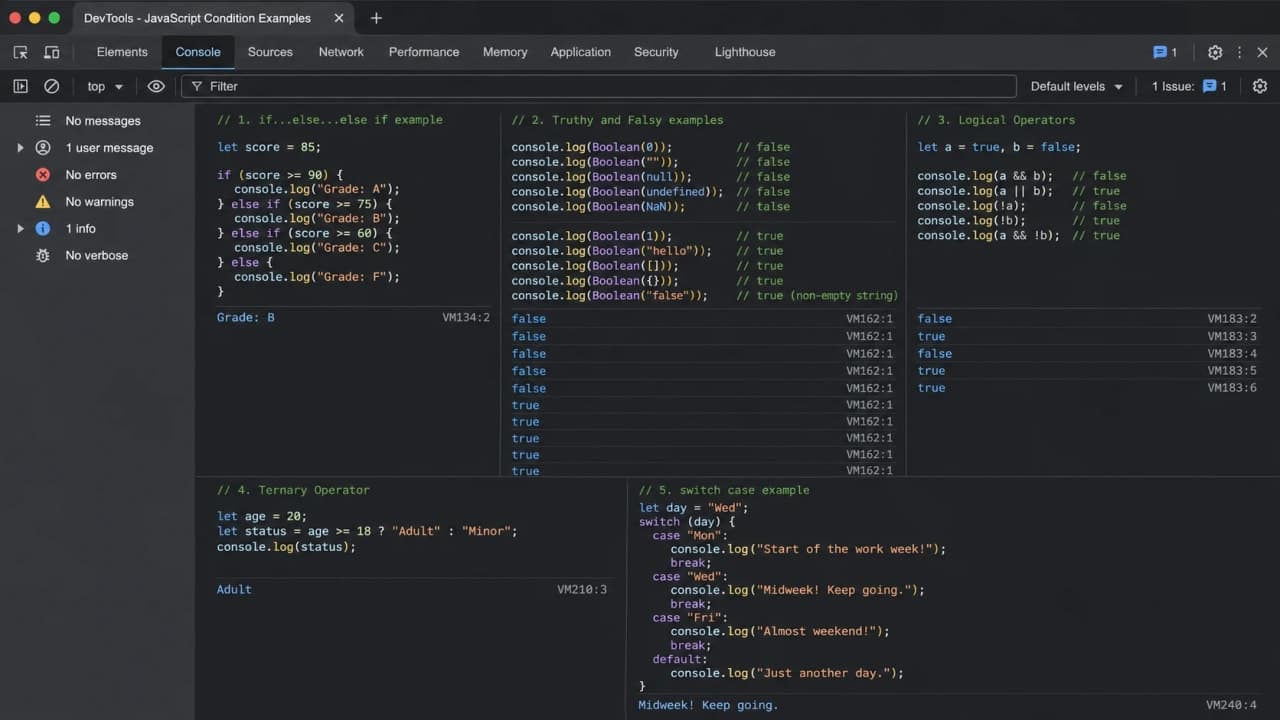
Open your browser console and create a tiny dashboard decision flow. Then change the values and watch which branch runs.
const user = {
  isLoggedIn: true,
  role: 'editor',
  hasVerifiedEmail: true,
};

if (!user.isLoggedIn) {
  console.log('Show login screen');
} else if (!user.hasVerifiedEmail) {
  console.log('Ask user to verify email');
} else if (user.role === 'admin') {
  console.log('Show admin dashboard');
} else if (user.role === 'editor') {
  console.log('Show editor dashboard');
} else {
  console.log('Show normal dashboard');
}
Now change role to admin. Change isLoggedIn to false. Change hasVerifiedEmail to false. This small experiment will teach you more than reading five definitions.
Interview Questions to Practice
What is a condition in JavaScript?
What is the difference between if, else if, and else?
Why does condition order matter?
What are truthy and falsy values?
Why is an empty array truthy?
When would you use switch instead of else if?
How does short-circuit evaluation help in frontend code?
Why can deeply nested conditions become difficult to maintain?
Final Thought
JavaScript conditions are small, but they carry a lot of responsibility. They decide what users see, which path your app takes, how your UI reacts to data, and how gracefully your application handles imperfect situations.
Do not rush this topic. Open the browser console. Write tiny examples. Break them. Change values. Try empty strings, empty arrays, null, undefined, user roles, loading flags, and API-like responses. That is how conditions stop feeling like syntax and start feeling like real logic.
Once this feels comfortable, the next natural topics are loops, functions, arrays, and objects. Conditions help your code decide. Those next topics will help your code repeat, organize, store, and build bigger pieces of real application behavior.
Lock in the takeaway
JavaScript Dev Diaries

Frequently asked questions
What are conditions in JavaScript?
Conditions are decision-making blocks that let JavaScript run different code depending on whether something is true or false.
What is the difference between if, else if, and else?
if checks the first condition, else if checks another condition when the earlier one fails, and else runs as the fallback when none of the earlier conditions pass.
Why do frontend developers care about truthy and falsy values?
Truthy and falsy values affect loaders, empty states, validation, and conditional rendering. A value like an empty string, null, or 0 can change which UI branch runs.
When should I use a switch statement?
Use switch when one value can match several clear cases, such as status labels, user roles, or API states. Avoid it when conditions are unrelated or complex.
Is the ternary operator good for beginners?
Yes, for small either-or decisions like labels or simple UI states. For complex branching, if/else is usually easier to read.